
How We Choose the Products We Recommend
We don’t have a warehouse full of gear to physically put through its paces — what we do instead is disciplined research. For every guide, we start with the manufacturer’s published specifications and compare them directly against competing models in the same price range. We track real, current pricing across retailers, not list prices that never actually apply, so the numbers in our comparisons reflect what you’d actually pay today. And we read, in bulk, through verified customer reviews and independent expert coverage for each product, looking for recurring complaints, common praise, and the patterns a single glossy product page won’t tell you.
Where we’ve personally bought and used a product ourselves — currently true for many of the kitchen items we cover — we say so directly in the review, and that firsthand experience shapes what we highlight. For everything else, our pros-and-cons calls come from that cross-referenced research process, not a single source or a rewritten spec sheet. We revisit guides periodically as prices shift and new models launch, and we link to multiple retailers where possible so you’re not stuck with just one option.

Ugo Daniel researches, compares, and writes the buying guides on Wallstores, cross-checking manufacturer specs, verified pricing, and real customer feedback across tech, home, fitness, and pet categories. He’s personally bought and used many of the kitchen appliances featured on the site, and draws on that firsthand experience in those reviews.
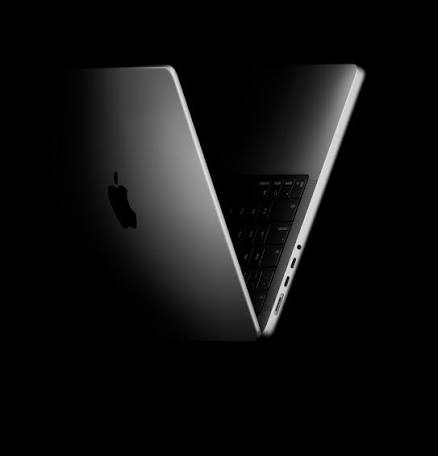
Buying a MacBook in 2026 means choosing between more models than ever — Air or Pro, three chip generations still on shelves, multiple screen sizes, and the question of whether a certified renewed unit makes sense. This guide walks through every factor that actually matters before you buy.
1. Air or Pro: Match the Chassis to Your Workload
The MacBook Air is fanless, silent, and thinner — built for browsing, writing, email, light photo editing, and everyday multitasking. The MacBook Pro adds active cooling, which means it can sustain peak CPU/GPU performance for much longer under heavy, continuous workloads like video exports, large software builds, or 3D rendering. If you don’t know which you need, ask: do I ever run a task that pins my current computer’s fans at 100% for more than a few minutes? If not, the Air is almost certainly enough.
2. Chip Generation: M4 vs M5
Apple currently sells both M4 and M5-generation MacBooks side by side. The M4 MacBook Air remains the best-selling and best-value option because the real-world performance gap to M5 is small for typical tasks — web browsing, documents, streaming, and light editing. The M5 chip mainly benefits users who do sustained creative or technical work, or who simply want the newest silicon for a longer usable lifespan. Paying extra for M5 makes the most sense if you plan to keep the laptop 5+ years.

The MacBook Air 13-inch (M4) remains the benchmark for value in the lineup at $999.
3. Screen Size: 13″, 14″, 15″, or 16″
The Air comes in 13.6-inch and 15.3-inch sizes; the Pro comes in 14.2-inch and 16.2-inch sizes. A 13-inch model is the most portable and easiest to use on a plane tray table or coffee shop table. Stepping up to 15/16 inches gives noticeably more working space for side-by-side windows, spreadsheets, or timeline-based creative work, at the cost of extra weight and a larger bag.
4. Unified Memory (RAM)
8GB is workable for basic browsing and office work but leaves little headroom for many browser tabs plus creative apps running simultaneously. 16GB is the sweet spot for most buyers and is what we recommend for anyone doing real multitasking. 24GB or more matters mainly for professionals working with large creative files, virtual machines, or heavy multitasking across pro apps.
5. Storage: How Much SSD Do You Need
256GB is tight if you store a large photo/video library or install many large applications, but fine for cloud-first users. 512GB comfortably covers most people’s apps, photos, and documents. 1TB or more is worth it for video editors, developers with large local repositories, or anyone who doesn’t want to manage storage carefully.
6. Ports and Connectivity
MacBook Air models include two Thunderbolt/USB-4 ports and MagSafe charging. MacBook Pro models add an HDMI port, an SD card slot, and an extra Thunderbolt port, plus support for Wi-Fi 7 on the newest models. If you regularly connect external displays, cameras, or memory cards, the Pro’s extra ports can save you from carrying a dongle.
7. New vs. Certified Renewed
A certified renewed MacBook — like the renewed M2 MacBook Air — can save you hundreds of dollars and still comes with a warranty and a quality inspection. This is a smart way to get the classic MacBook experience on a budget, but expect an older chip generation and no ability to customize the configuration. For buyers who want the newest chip, the latest camera, or a specific color and configuration, buying new is the better choice.

The renewed M2 MacBook Air is one of the lowest-cost ways into the MacBook ecosystem at $759.
Quick Decision Guide
| If you are… | Consider |
|---|---|
| A student or everyday user on a budget | MacBook Air 13″ (M4) or renewed M2 Air |
| Someone who wants the newest chip and more storage | MacBook Air 13″ or 15″ (M5) |
| A video editor or developer with heavy sustained workloads | MacBook Pro 14″ (M5) |
| A creative professional needing maximum power | MacBook Pro 16″ (M5 Pro) |
Related Guides
Ugo Daniel researches, compares, and writes the buying guides on Wallstores, cross-checking manufacturer specs, verified pricing, and real customer feedback across tech, home, fitness, and pet categories. He’s personally bought and used many of the kitchen appliances featured on the site, and draws on that firsthand experience in those reviews.